Create a reward
A step-by-step guide to creating a reward in the Loybox dashboard, from picking the type to making it available for redemption.
Creating a reward takes less than a minute. In this guide we do it end to end from the dashboard.
The dashboard is in Spanish
Loybox's admin dashboard is not translated yet, so menu and button names are quoted exactly as they appear on screen, with the English meaning right after. Everything else on this page is in English.
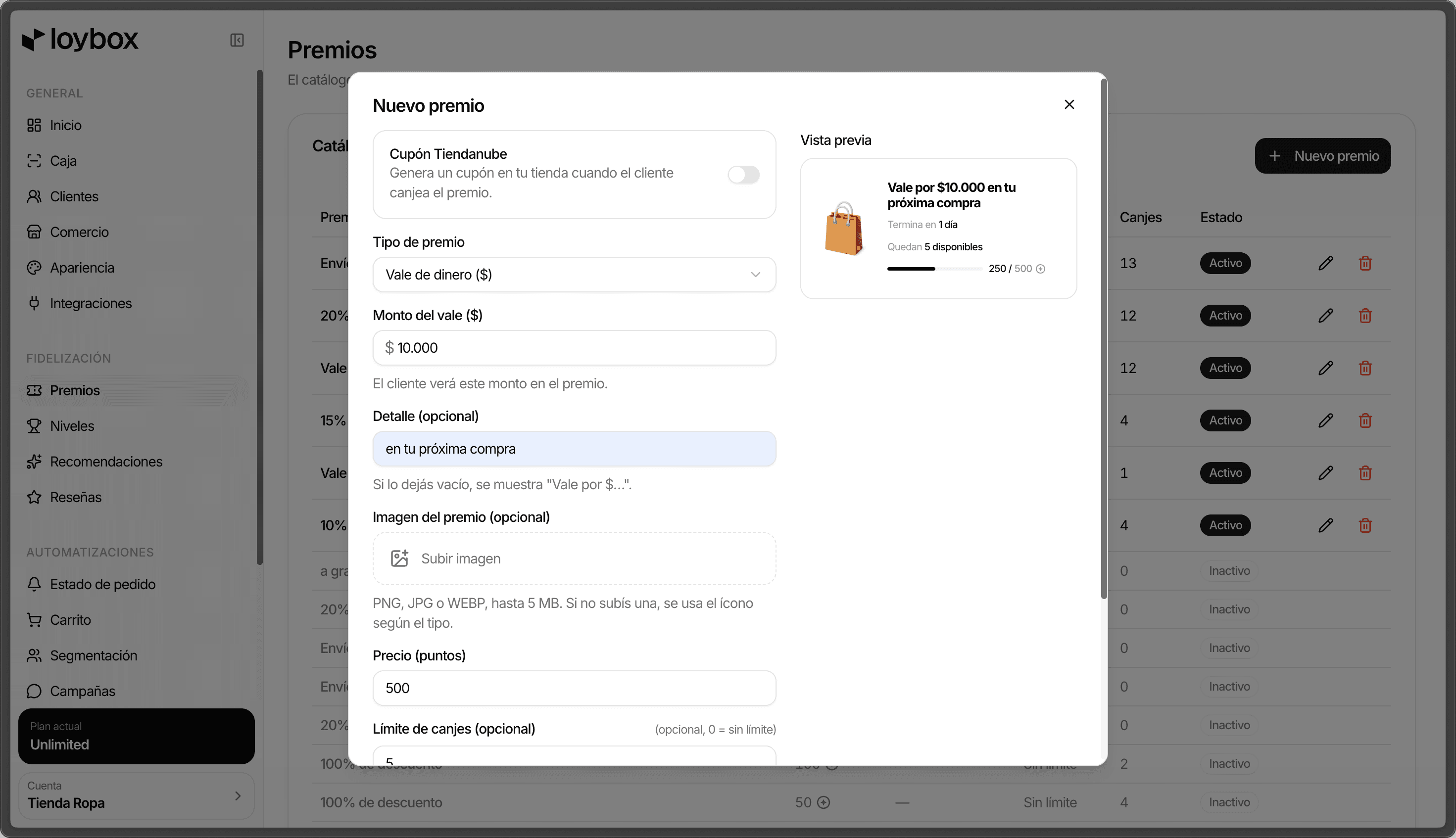
Step by step
Go to Premios (Rewards)
In the sidebar, under Fidelización (Loyalty), tap Premios. You will see your Catálogo de premios (reward catalog).
Tap Nuevo premio (New reward)
The button sits at the top right of the catalog. A window opens to build the reward. (If you do not have any yet, the button reads Crear premio, "Create reward".)
Pick the Tipo de premio (reward type)
In the Tipo de premio dropdown, choose what the member will get:
| Type | What it delivers |
|---|---|
| Producto gratis (free product) | A product from your catalog, at no cost. |
| Vale de dinero ($) (money voucher) | A fixed discount amount. |
| Descuento porcentual (%) (percentage discount) | A percentage off. |
| 2x1 (2-for-1) | A two-for-one promotion. |
| Envío gratis (free shipping) | Shipping at no cost. |
| Otro (other) | Any benefit you define as free text. |
Fill in the reward's value
A different field appears depending on the type:
- Vale de dinero → Monto del vale ($), the voucher amount (for example,
10.000). - Descuento porcentual → Porcentaje de descuento, the percentage (1 to 100).
- Producto gratis, 2x1 or Otro → a Detalle (detail) field to describe it, up to 40 characters.
- Envío gratis → needs no value.
On the types with an amount or a percentage you can add a Detalle (opcional) to fine-tune the text the member reads (for example, "on your next purchase").
Upload an image (optional)
Under Imagen del premio (opcional) you can upload a photo (PNG, JPG or WEBP, up to 5 MB). If you do not upload one, Loybox uses an icon based on the reward type.
Set the Precio (puntos) (price in points)
This is how many points it costs to redeem the reward. It is required and has to be greater than zero: until you fill it in, the save button stays disabled.
Adjust the limits (optional)
- Límite de canjes (opcional) (redemption cap): how many times it can be
redeemed in total. Leave it at
0for unlimited. - Vencimiento (opcional) (expiration): the date until which it is available.
- Otras restricciones (opcional) (other restrictions): a free-text note (for example, "Cannot be combined with other promotions").
Check the Vista previa (preview)
Off to one side you will see a Vista previa showing the reward exactly as the member will see it in their app, updating as you fill in the fields.
Tap Crear premio (Create reward)
That is it: the reward is saved and shows up in your Catálogo de premios, available for redemption. You can create as many as you want.
Two things worth knowing
Do not name it: it writes itself
There is no name field and no description field. The reward's title and text are generated automatically from the type and value you choose, and you can see them in the preview.
The state is computed for you
There is no "active" toggle when creating. Whether a reward is available, sold out or expired follows from its configuration (price, redemption cap and expiration). You can see each reward's state in the catalog.
If you have Tiendanube connected
If your Tiendanube store is connected, creating a reward shows a Cupón Tiendanube (Tiendanube coupon) toggle. Turning it on makes the reward generate a real coupon in your store when the member redeems it, and you pick the Tipo de cupón (coupon type: percentage discount, fixed amount, free shipping or free product) and, where it applies, the Categoría (category) it covers.
With the Tiendanube coupon enabled, the reward uses the coupon's configuration instead of the free-form image and detail. It is the ideal option for the redemption to apply on its own at your online store's checkout.